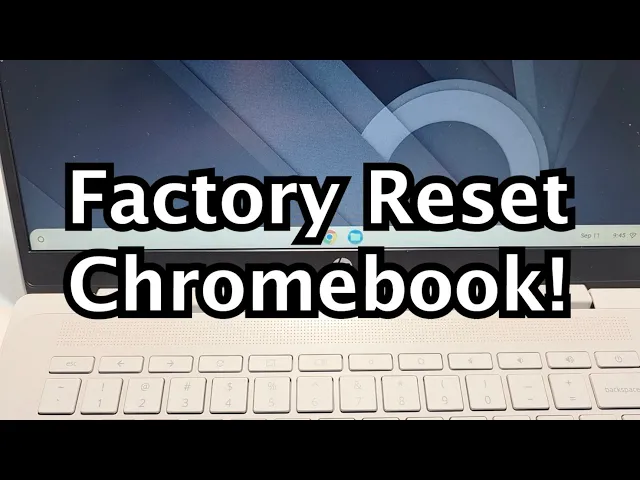
How to wipe and reset a Chromebook to sell it (Powerwash, no password needed)
By Kai Gradert, co-founder of Hero · Updated

Short answer: to clear, wipe, or reset a Chromebook before you sell it, back up anything saved on it, sign out, then press and hold Ctrl + Alt + Shift + R on the sign-in screen. Select Restart, then Powerwash and Continue. When it restarts on the welcome screen, don't sign in. Just shut it down. (Google's factory reset steps)
Google calls a factory reset a "Powerwash." It erases everything stored on the Chromebook, including the Downloads folder and every account on it. It does not touch anything stored in Google Drive or on an external drive.
Below: what to check first, two ways to Powerwash, what to do if the Chromebook is managed by a school or company, fixes when the reset fails, and what to put in your listing.
Before you reset: four quick checks
1. Back up what's on the device. Files in the Downloads folder only live on the Chromebook. Move anything you want to keep to Google Drive or a USB drive first. (Google)
2. Make sure it isn't a school or work Chromebook. Look for "This device is managed by..." on the sign-in screen, or "Updates are managed by your administrator" in Settings > About ChromeOS. If you see either, stop and read the managed section below. (Google)
3. Write down the update date. Open Settings > About ChromeOS > Additional details. Under "Update schedule" it says how long the Chromebook gets automatic updates. Buyers look for this, so note it before you wipe. (Google)
4. Plug it in. Keep it on the charger so the battery doesn't run out partway through.
How to Powerwash a Chromebook with the keyboard shortcut
This is the fastest way, and it works from the sign-in screen, so you don't need to be signed in.
Sign out (select the time at the bottom right, then Sign out).
On the sign-in screen, press and hold Ctrl + Alt + Shift + R.
Select Restart.
In the box that appears, select Powerwash, then Continue.
Wait for it to restart on the welcome screen.
Google's steps end with "sign in with your Google Account." Skip that if you're selling. The first account that signs in after a reset becomes the owner. Leave it on the welcome screen and turn it off, so your buyer becomes the owner. (Google, Google: owner account)
How to Powerwash from Settings
If you're already signed in:
Select the time at the bottom right, then the Settings gear.
Select System preferences. On older ChromeOS versions, select Advanced, then Reset settings.
In the Reset section, next to Powerwash, select Reset.
Select Restart. When it restarts, select Powerwash, then Continue.
Same result as the shortcut. Again, don't sign back in afterwards. (ASUS: Powerwash from Settings)
Do you need to remove your Google account first?
No. A Powerwash removes every account from the Chromebook, including the owner account. You can't remove the owner account any other way. (Google)
If you only want to clear a second user, you can do that from the sign-in screen: select their profile, select the Down arrow next to the name, then Remove this user and confirm. That removes the account from the Chromebook only. The Google Account itself and its data still exist. (Google)
School or work Chromebooks: why you can't reset and sell them
If a school or company manages the Chromebook, you can't reset it yourself. Google says to contact the administrator. (Google)
Even if you manage to wipe it, it usually won't help your buyer. By default, a managed Chromebook that gets wiped re-enrolls itself into the organization's account. After that, the buyer can't sign in with their own account or use guest mode. (Google: forced re-enrollment)
The fix is for the organization to deprovision the device in its Google Admin console. Google tells admins to do this when a device leaves their management. (Google, Google: retire devices)
If you bought a used Chromebook that still shows a school or company name, ask the seller or the organization's IT team to deprovision it before you list it. Don't list it as working until it boots to a normal welcome screen.
What if the reset doesn't work?
Powerwash is blocked or missing: the Chromebook is almost always managed. See the section above.
Chromebook is frozen or the keyboard doesn't respond: do a hard reset. Turn it off, press and hold Refresh and tap Power, then let go of Refresh when it starts. On a Chromebook tablet, hold Volume Up + Power for at least 10 seconds. Then try the Powerwash again. (Google)
"ChromeOS is missing or damaged": recover it. Press and hold Esc + Refresh, then press Power to enter recovery mode. Pick Recover using internet connection if you see it. If not, use the Chromebook Recovery Utility in Chrome on another computer to make a recovery USB (at least 8 GB). Recovery also erases the drive. (Google)
After the reset: check it before you list
Clean boot: it should start on the welcome screen with no school or company name and no "managed" message.
Hardware test: every key, the trackpad, each port, the hinge, the screen (look for dead pixels or lines), speakers, webcam and Wi-Fi.
Charger: check it charges with the charger you're including.
For a full device checklist, see the ultimate checklist for selling used electronics.
What to put in your Chromebook listing
Brand, model name and model number. Many models share a name, so the number matters. It's on the sticker on the bottom, and it's what buyers search for.
The update date. "Gets automatic updates until June 2031" tells a buyer how long it stays supported. If you didn't note it before the wipe, look the model up on Google's Auto Update policy list. Chromebooks from 2021 on get 10 years of updates. (Google)
"Powerwashed, not managed, ready for a new owner." This answers the first question most buyers ask.
Condition, honestly: scratches, worn keys, battery behavior, anything that doesn't work.
What's in the box: charger, original box, stylus if it has one.
Real photos: front, back, keyboard, screen on, ports, and any wear. A photo of the welcome screen shows it's been reset.
More on writing it up: how to write a perfect used product listing.
How to price it
Price depends on the model, condition and how many years of updates are left. A Chromebook past its update date usually sells for less. Check sold listings for the same model number, not active ones. Here's how to find out what anything is worth before you sell it.
eBay gives you the widest pool of buyers and Chromebooks ship easily. Facebook Marketplace is good for a quick local sale. If you list on eBay, build eBay fees into your price.
If you'd rather not write it all by hand: Hero Stuff pulls comparable sold listings so you can price against what buyers actually paid, then drafts the title and description. You review it and list on eBay and Facebook Marketplace, and Inventory Export is there if you sell elsewhere too. See current plans.
Watch: video walkthrough
FAQ
Do I need the password to reset a Chromebook?
No. Sign out, or start from the sign-in screen, press and hold Ctrl + Alt + Shift + R, select Restart, then Powerwash and Continue. The only exception is a school or work Chromebook, which you can't reset yourself.
Does a Powerwash delete my Google Drive files?
No. It erases what's stored on the Chromebook, including the Downloads folder. Files in Google Drive or on an external drive stay where they are.
Should I sign in after the Powerwash?
Not if you're selling it. The first account that signs in after a reset becomes the owner. Leave it on the welcome screen and turn it off so the buyer can set it up with their own account.
Can I sell a school or work Chromebook?
Only after the school or company deprovisions it. Otherwise a wiped Chromebook usually re-enrolls itself into their account, and the buyer can't use it with their own account.
Where do I find a Chromebook's update expiration date?
Open Settings > About ChromeOS > Additional details and look under "Update schedule." You can also look up the model on Google's Auto Update policy list.
Related guides
Happy flipping ✌️

How to bulk list on eBay: CSV upload, Bulk Listing Tool, or AI

Price checker apps: how to check what something's worth before you buy it
The best apps for resellers in 2026

Is there an AI that creates eBay and Facebook Marketplace listings for you?

How to Import Shopify or WooCommerce Products to eBay and Facebook Marketplace
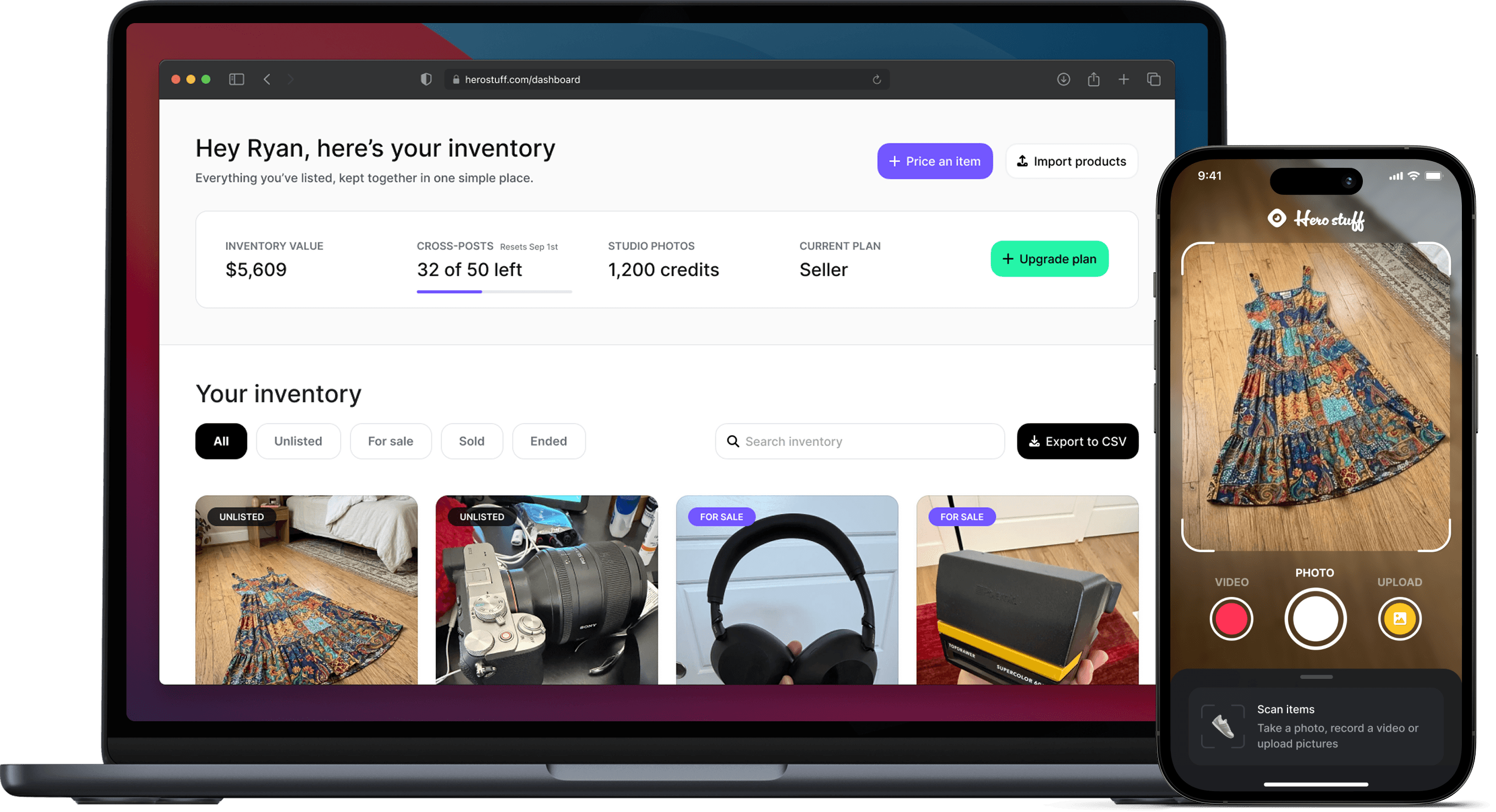
Hero now does bulk: connect Shopify, import your catalog, list everything

Hero is now available globally 🇩🇪 🇪🇬 🇮🇳