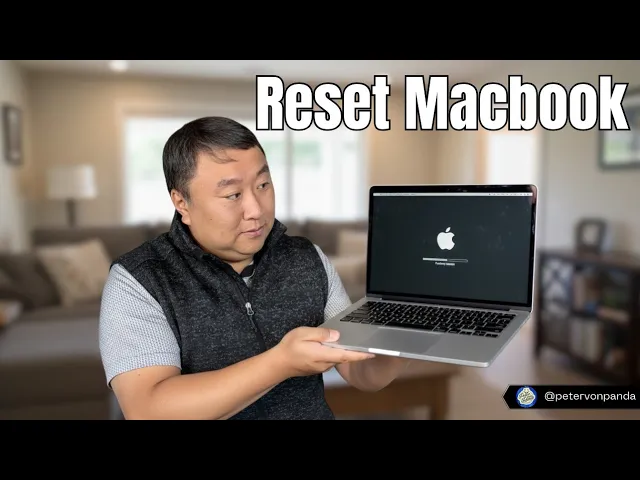
How to factory reset a MacBook Air for resale
How to
Jan 27, 2026
Prepare your MacBook Air for a new owner by wiping it clean.
First, shut down the computer completely to ensure a fresh start. Restart the machine while immediately holding down the Command + R keys; this will force the laptop to boot into macOS Recovery mode rather than the standard desktop.
Once the utilities menu loads, open “Disk Utility” to manage your storage. Select your main hard drive from the list and click erase to remove all personal data, ensuring you choose the APFS format if prompted. After the drive is wiped, close the utility and select “Reinstall macOS” to load a fresh operating system. This entire process ensures your device is safe to give away or sell without sharing your private information.
Key Takeaways
Recovery mode: Power on the laptop while holding the Command and R keys to boot into the system utilities menu. [00:21]
Disk utility: Open the Disk Utility tool to access your hard drive management settings before reinstalling the software. [00:37]
Drive wiping: Select your main hard drive and click erase to completely remove all existing data and files. [00:53]
Format selection: Choose the APFS format when prompted to ensure the drive is optimized for modern macOS versions. [01:04]
Fresh install: Close the utility and select “Reinstall macOS” to set up a factory-new operating system for the next user. [01:24]
Make sure to subscribe to Peter von Panda on YouTube and follow him on Instagram.